One-Time Password Email Integration (OTP)
Many real-world login flows require an email-based one-time password (OTP) or account access code. Without mailbox automation, this step breaks end-to-end testing because someone must manually open the inbox, copy the code, and paste it into the website.
Testdom.io solves this by letting your User Flow tests securely fetch OTP emails and extract the code automatically. In this guide, you will connect a Microsoft email mailbox and configure a Wait for OTP at Mailbox step so the flow can continue without any human action.
What the OTP feature does
- Connect an email mailbox to your Testdom.io account (for example a Microsoft mailbox via consent)
- Use a User Flow step that waits for a matching email (by subject and/or sender)
- Extract the OTP from the email content using either length/type rules or a regex pattern
- Store the extracted value into a variable and reuse it in the next steps (typing it into the OTP field, submitting, etc.)
Before you start
- Please note that we do not access or read all emails. Our system only retrieves unread emails that arrive during the specific test execution process timeframe. These emails are filtered based on user-defined criteria, such as sender domain and subject patterns, ensuring that only the emails relevant to the test scenario are accessed. This targeted approach minimizes access to your mailbox and respects your privacy
- Use a dedicated test mailbox (recommended) instead of a personal inbox
- Make sure the website you test is configured to send OTP emails to that mailbox
- Prepare the matching rules you expect to see in the email:
- Subject phrase (example: Account Access Code)
- Sender domain or address (example: @maxmind.com)
- OTP format (example: 6 digits)
Step 1: Connect your Microsoft mailbox to Testdom.io
In Testdom.io, connect the mailbox once, then reuse it across multiple flows. After linking the mailbox, it will appear in the Wait for OTP at Mailbox step dropdown as an approved mailbox.
1.1 Open the Mailboxes settings screen
From the dashboard, go to Settings and open your mailbox settings. This is where you manage all mailboxes used for OTP and email-confirmation steps in User Flow tests.
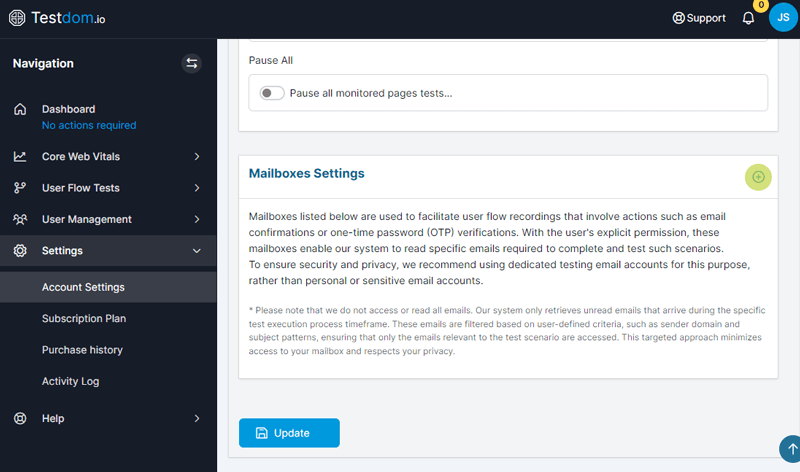
Screenshot: The Mailboxes settings area inside Testdom.io.
1.2 Click the plus icon to add a new mailbox
In the Mailboxes section, click the plus icon. A popup will open where you choose the mailbox provider, enter the mailbox email address, and then confirm the request.
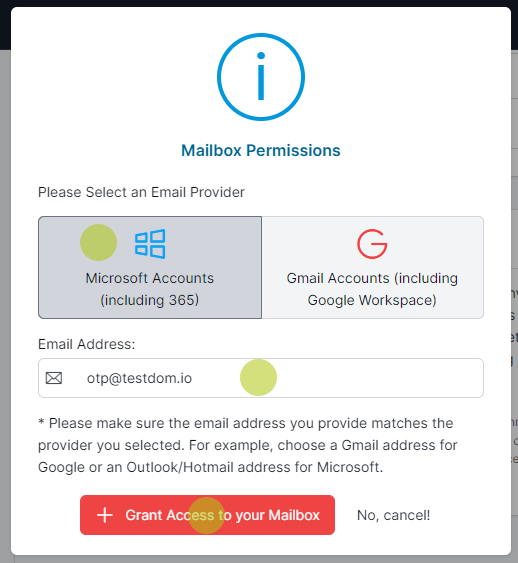
Screenshot: New mailbox popup where you select Microsoft, enter the email address, and grant access.
1.3 Sign in to Microsoft (if required)
After clicking the confirm/grant button, Microsoft will open its sign-in page. If you are already signed in, Microsoft may skip this step. Otherwise, sign in with the mailbox account you entered.
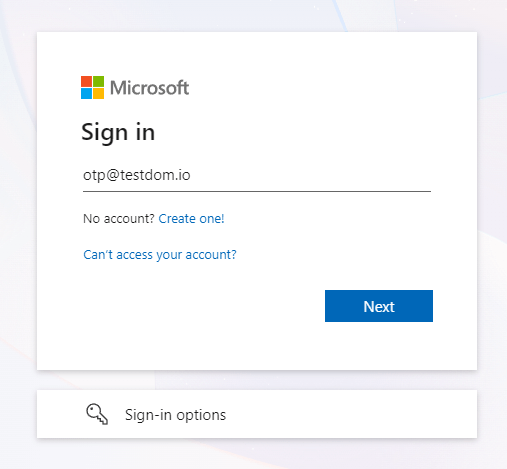
Screenshot: Microsoft sign-in step during mailbox connection.
1.4 Approve the permissions request
Microsoft will show a permissions page. Approve the requested permissions so Testdom.io can read the specific OTP emails needed during the test execution timeframe. Once you click accept, you will be redirected back to Testdom.io.
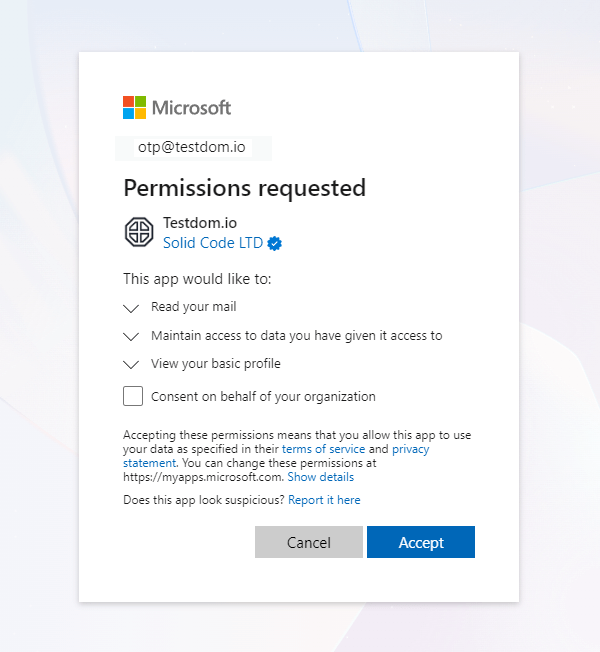
Screenshot: Microsoft permissions request (approve to continue).
1.5 Confirm the mailbox is linked in Testdom.io
After Microsoft redirects you back, Testdom.io will show a confirmation toast and the mailbox will appear in the list as active. From this point, your mailbox can be used by OTP steps in any User Flow test. If you also want to verify the mailbox row details (email, active state, and access mode), confirm it appears in the list as an active mailbox.
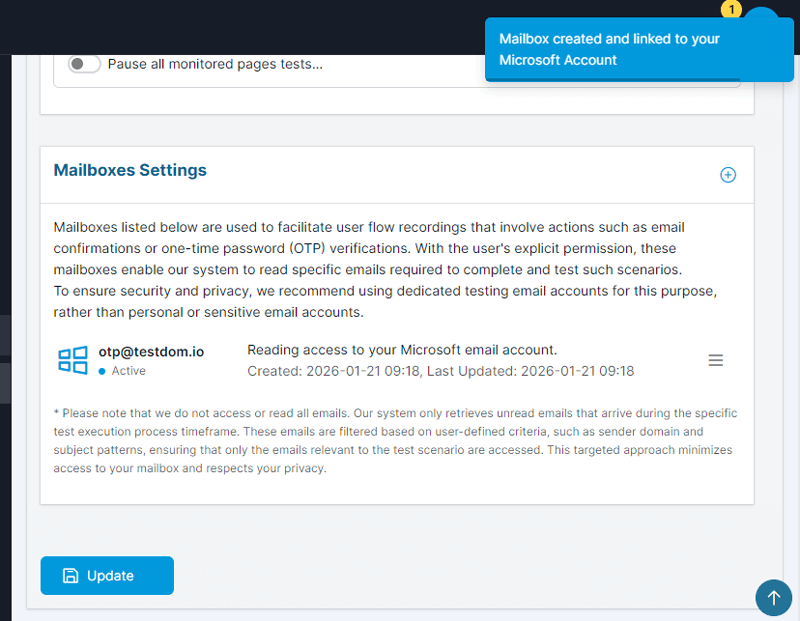
Screenshot: Confirmation that the mailbox is linked successfully.
Step 2: Add "Wait for OTP at Mailbox" to your User Flow
Now you will add the OTP step at the exact point in the flow where the website is waiting for the code (usually after submitting username and password).
2.1 Place the OTP step right after the action that triggers the email
In the User Flow Editor, scroll to the point where the site sends the OTP email. Insert the OTP step before you type the code into the website.
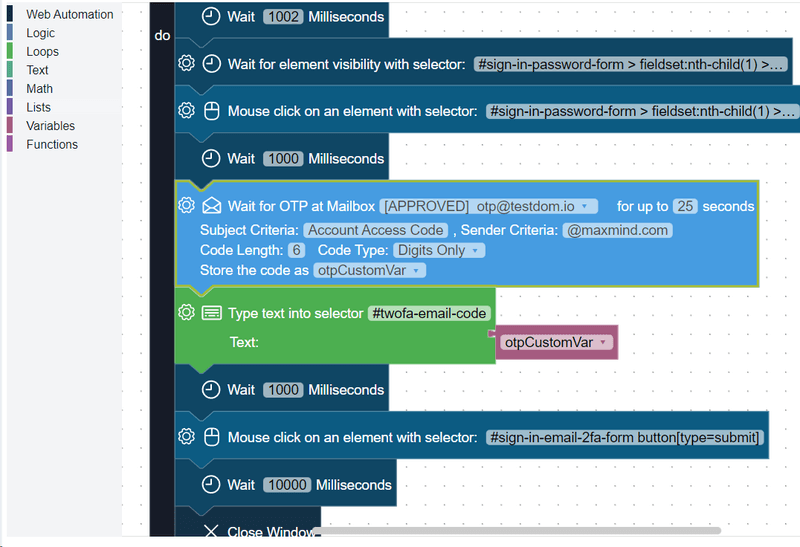
Screenshot: OTP block placed before the OTP field input step.
2.2 Configure the OTP block fields
The OTP step includes several fields. Configure them so the test fetches the correct email quickly and extracts the correct value reliably.
- Mailbox - Choose the approved Microsoft mailbox from the dropdown (it should show as APPROVED)
- Wait time - Maximum time (seconds) to wait for the email to arrive (example: 25)
- Subject criteria - A phrase that should appear in the subject (example: Account Access Code)
- Sender criteria - Filter by sender domain or address (example: @maxmind.com)
- Store the code as - The variable name that will hold the extracted OTP (example: otpCustomVar)
How OTP extraction works in Testdom.io
Once the correct email is found, Testdom.io extracts the OTP using one of two approaches:
Option A: Code length + code type
This is the simplest approach and works well for common OTP patterns:
- Code length (example: 6)
- Code type (example: Digits Only)
Use this when your OTP is always the same length and format (for example 6 digits).
Option B: Regex pattern (advanced)
If your OTP email format is inconsistent or includes multiple numbers, a regex is safer because it lets you match exactly what you want.
Example regex patterns:
- 6 digits (standalone): \b(\d{6})\b
- 8 digits (standalone): \b(\d{8})\b
- Alphanumeric code, 6-10 chars: \b([A-Z0-9]{6,10})\b
When a regex is used, the system extracts the first capturing group (the part inside ( ... )) and stores it into your chosen variable.
Step 3: Type the extracted OTP into the website
After the OTP step stores the code into a variable, the next step should type it into the OTP input field on the page.
- Add a typing step that targets the OTP input selector (example: #wofa-email-code)
- Set the value to the OTP variable (example: otpCustomVar)
- Submit the form (button click or enter key) and continue the flow
In the editor view, you should see the OTP variable being referenced as the input value right after the OTP block.
Step 4: Run the flow and validate it end-to-end
Run the User Flow test and watch the live progress to confirm the OTP step is executed and the flow continues past the OTP screen.
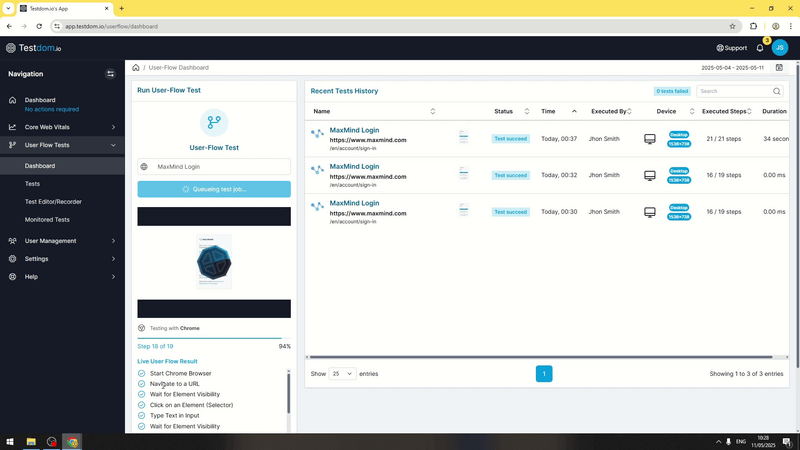
Screenshot: Live execution view while the flow is running.
When the test completes, open the result page and confirm:
- The test status is Test succeed
- The recording shows the flow moved past the OTP screen
- The steps list includes the OTP block execution in the correct order
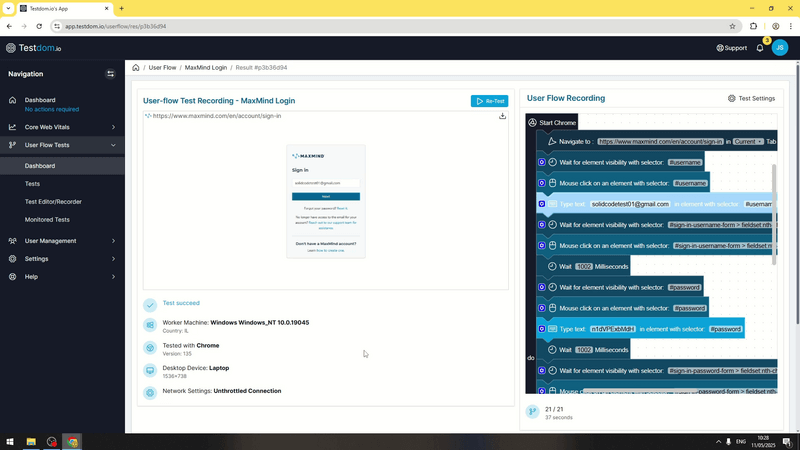
Screenshot: Result page after a successful OTP-based login.
Troubleshooting
The OTP block shows "No Mailboxes"
- Make sure you completed the Microsoft consent flow and returned to Testdom.io successfully
- Refresh the editor and re-open the test editor page
- Verify the mailbox is marked as APPROVED in account settings
The flow times out waiting for the OTP email
- Increase the wait time (for example from 25 to 60 seconds)
- Make subject and sender filters less strict to confirm emails arrive, then tighten again
- Ensure the website is sending the OTP to the same mailbox you connected
The wrong value is extracted
- If there are multiple numbers in the email, switch to regex extraction
- Use a regex with boundaries \b and a capturing group ( )
- Confirm the OTP length and type match what the website actually sends
Security and privacy notes
- Use a dedicated test mailbox for automation flows
- Avoid reusing personal mailboxes or mailboxes with sensitive data
- Keep subject and sender filters strict enough to reduce accidental matches
Video walkthrough
If you prefer watching the full process end-to-end, here is the recorded walkthrough:
Note: The video walkthrough was recorded using a Gmail mailbox, but the setup and usage steps are the same when connecting a Microsoft mailbox.